

Accessing in-custody clients
How legal representatives can access in-custody clients through in-person, audio, and video options and book appointments at select correctional facilities in Ontario.
Overview
Legal representatives can access their clients through three methods:
- in-person visits
- Access Defence via audio
- Remote Defence Access via video
While in-person visits is the preferred approach, remote alternatives — such as audio or video conferencing — are available at most correctional facilities to accommodate varying circumstances.
In-person visits
Legal representatives may meet with in-custody clients at the correctional facility in person. Confidential discussions are facilitated in a designated private visiting area. All visitors must present government-issued photo identification and adhere to the protocols at each correctional facility.
Learn more about in-person visits, including scheduling, locations, and what to expect during your visit.
Access Defence (audio)
Access Defence is an audio service that enables secure, confidential and remote appointments for counsel and in-custody clients. It provides flexibility, secure, and preset meeting times.
Booking instructions
Email access_defence@bell.ca to register for Access Defence.
You must provide following information in your email:
- lawyer’s name
- Bell client file number (this number is provided on registration)
- email address
- name of your client
- name of the institution where your client is being held
- date and time of proposed teleconference
Remote Defence Access (video)
Remote Defence Access (RDA) offers secure video conferencing and screen sharing through the Justice Video Network (JVN). Legal representatives must register and accept terms and conditions before use.
Register and book an appointment
To register for RDA and book an appointment, legal representatives must do the following:
- Complete the RDA Application Form.
- Self-attest to being in good standing with the Law Society of Ontario or the Law Society of another jurisdiction.
- Provide their Law Society identification card and/or valid government-issued photo identification.
To schedule a visit, legal representatives must complete the RDA Scheduling Form.
Appointments should be booked at least 3 business days in advance.
Cancellations
If you need to cancel your appointment, promptly report your cancellation to allow other legal representatives to access RDA services.
Device limits
RDA visits are limited to 2 devices:
• one at the facility
• one used by the legal representative
Additional participants may join from the legal representative’s device, but the representative must attend. Notify the facility when you book of any additional attendees.
Remote Defence Access Guide
Find guidance on connecting to RDA, supported browsers and testing internet speed.
Remote Defence troubleshooting tips
Find information on troubleshooting, login issues, and resolving audio and video problems.
General inquiries
If you have questions regarding the RDA service, email rda-registration@ontario.ca.
Which correctional facilities offer these services
The following list identifies what service(s) are available and when at participating facilities.
Algoma Treatment and Remand Centre
Access Defence
Not available.
Remote Defence Access
Schedule:
- Monday to Friday, 5 p.m. to 8:30 p.m.
- Saturday and Sunday, 12 p.m. to 8:30 p.m.
Contact: ATRCremotedefenceaccess@ontario.ca
Brockville Jail
Access Defence
Not available.
Remote Defence Access
Schedule:
- Monday to Friday, 6 p.m. to 8 p.m.
- Saturday and Sunday, 10:00 a.m. to 6 p.m.
Contact: defencemessagesBJ@ontario.ca
Central East Correctional Centre
Access Defence
Schedule: Monday to Sunday, 1 p.m. to 6 p.m.
Contact: access_defence@bell.ca
Remote Defence Access
Schedule:
- Monday to Friday:
- 9 a.m. to 11:30 a.m.
- 1 p.m. to 4 p.m.
- 5 p.m. to 6 p.m.
- Saturday and Sunday:
- 9 a.m. to 11:30 a.m.
- 1 p.m. to 5 p.m.
Contact: RDA-CECC@ontario.ca
Central North Correctional Centre
Access Defence
Schedule: Monday to Sunday, 9 a.m. to 4 p.m.
Contact: access_defence@bell.ca
Remote Defence Access
Schedule:
- Monday to Friday:
- 1 p.m. to 7 p.m.
Contact: CNCCRemoteDefenseAccess@ontario.ca
Elgin-Middlesex Detention Centre
Access Defence
Not available.
Remote Defence Access
Schedule:
- Wednesday:
- 8 a.m. to 9 a.m.
Contact: EMDCremotedefenceaccess@ontario.ca
Hamilton-Wentworth Detention Centre
Access Defence
Schedule: Monday to Sunday 9 a.m. to 7:30 p.m.
Contact: access_defence@bell.ca
Remote Defence Access
Schedule:
- Monday to Friday
- 6:10 p.m. to 7:50 p.m.
- Saturday and Sunday
- 9:15 a.m. to 11 a.m.
- 1:15 p.m. to 4 p.m.
- 6:10 p.m. to 7:50 p.m.
Contact: HWDC-RDA@ontario.ca
Kenora Jail
Access Defence
Not available.
Remote Defence Access
Schedule (Central time):
- Monday to Friday
- 4 p.m. to 6 p.m.
- Saturday and Sunday
- 9:15 a.m. to 11 a.m.
- 1:15 p.m. to 4 p.m.
- 6:10 p.m. to 7:50 p.m.
Contact: DefenceMessagesKJ@ontario.ca
Maplehurst Correctional Complex
Access Defence
Schedule:
- Monday to Sunday
- 9:30 a.m. to 11:00 a.m.
- 1:30 p.m. to 3 p.m.
- 5:30 p.m. to 7 p.m.
Contact:
access_defence@bell.ca
Remote Defence Access
Schedule:
- Monday to Sunday
- 5:30 p.m. to 7:30 p.m.
Contact: mhcc-rda@ontario.ca
Monteith Correctional Centre
Access Defence
Not available.
Remote Defence Access
Schedule:
- Monday, Wednesday and Friday
- 5 p.m. to 6 p.m.
- Tuesday and Thursday
- 5 p.m. to 8 p.m.
- Saturday and Sunday
- 10 a.m. to 11:30 a.m.
- 1:30 p.m. to 3:30 p.m.
- 4 p.m. to 6 p.m.
Contact: VC-MCC@ontario.ca
Niagara Detention Centre
Access Defence
Schedule:
- Monday to Sunday
- 9:30 a.m. to 11 a.m.
- 1:30 p.m. to 4 p.m.
- 6 p.m. to 8:30 p.m.
Contact: access_defence@bell.ca
Remote Defence Access
Schedule:
- Monday to Friday
- 9:30 a.m. to 12 noon
- Saturday and Sunday
- 9:30 a.m. to 12 noon
Contact: NDCRemoteAccessDefence@ontario.ca
North Bay Jail
Access Defence
Not available.
Remote Defence Access
Schedule:
- Monday to Friday
- 3 p.m. to 4 p.m.
- 5 p.m. to 7 p.m.
- Saturday and Sunday
- 9 a.m. to 11:30 a.m.
Contact: RDA_NBJ@ontario.ca
Ottawa Carleton Detention Centre
Access Defence
Not available.
Remote Defence Access
Schedule:
- Monday to Sunday
- 9:30 a.m. to 8 p.m.
Contact: vc-ocdc@ontario.ca
Quinte Detention Centre
Access Defence
Not available.
Remote Defence Access
Schedule:
- Saturday
- 8:30 a.m. to 9:30 a.m.
Contact: QDC-RDA@ontario.ca
Sarnia Jail
Access Defence
Not available.
Remote Defence Access
Schedule:
- Friday
- 3 p.m. to 4 p.m.
- Saturday
- 3 p.m. to 4 p.m.
Contact: SarniaJailRemoteDefenseAccess@ontario.ca
South West Detention Centre
Access Defence
Not available.
Remote Defence Access
Schedule:
- Monday to Friday
- 5:30 p.m. to 8 p.m.
- Saturday and Sunday
- 9 a.m. to 11:30 a.m.
- 1:30 p.m. to 4:30 p.m.
- 5 p.m. to 6:30 p.m.
- 7 p.m. to 8 p.m.
Contact: vc-swdc@ontario.ca
Stratford Jail
Access Defence
Not available.
Remote Defence Access
Schedule:
- Monday to Friday
- 6 p.m. to 8 p.m.
- Saturday and Sunday
- 12 noon to 2 p.m.
Contact: Stratfordjail-RDA@ontario.ca
Sudbury Jail
Access Defence
Not available.
Remote Defence Access
Schedule:
- Saturday and Sunday
- 9 a.m. to 11:30 a.m.
- 1 p.m. to 5 p.m.
Contact: RDA.SudburyJail@ontario.ca
Thunder Bay Correctional Centre
Access Defence
Not available.
Remote Defence Access
Schedule:
- Monday to Friday
- 8 a.m. to 9:45 a.m.
- 4 p.m. to 9 p.m.
- Saturday and Sunday
- 9 a.m. to 9 p.m.
Contact: tbccrda@ontario.ca
Toronto East Detention Centre
Access Defence
Schedule:
- Monday to Sunday
- 9 a.m. to 10:30 a.m.
- 1 p.m. to 3:30 p.m.
- 6 p.m. to 8:30 p.m.
Contact: access_defence@bell.ca
Remote Defence Access
Schedule:
- Monday to Friday
- 6 p.m. to 8 p.m.
Contact: TEDC.RDA@ontario.ca
Toronto South Detention Centre
Access Defence
Not available.
Remote Defence Access
Schedule:
- Monday to Friday
- 9:30 a.m. to 11:30 a.m.
- 2 p.m. to 4 p.m.
- 5:30 p.m. to 6 p.m.
- 7:30 p.m. to 8 p.m.
- Saturday and Sunday
- 9:30 a.m. to 11:30 a.m.
- 2 p.m. to 4 p.m.
- 5:30 p.m. to 6 p.m.
- 7:30 p.m. to 8 p.m.
Contact: vc-tsdc@ontario.ca
Vanier Centre for Women
Access Defence
Schedule:
- Monday to Sunday
- 9 a.m. to 11a.m.
- 2 p.m. to 4 p.m.
- 6 p.m. to 8 p.m.
Contact:
access_defence@bell.ca
Remote Defence Access
Schedule:
- Monday to Friday
- 8 a.m. to 9 a.m.
Contact: VCFW-RDA@ontario.ca
Remote Defence Access Guide
Before your Remote Defence Access meeting
Before joining the Remote Defence Access meeting, make sure your device is ready:
- Use a computer if you need to share your screen or show documents. Screen sharing does not work on phones or tablets.
- Make sure your camera is working and connected.
- Make sure your microphone or headset is working so others can hear you.
- Check your internet speed: speedtest.net.
- A wired internet connection is recommended.
- If using Wi-Fi, ensure you are connected to a strong, stable network.
Supported devices
- Computers (Windows and MacOS):
- must have a webcam
- external headset with microphone is recommended
- Mobile devices
- supported with limited features (screen sharing is not available)
Network requirements
- Minimum: 1 Mbps upload and download.
- Recommended: 1.5 Mbps upload and download.
Supported web browsers
You can join the RDA meeting using the following browsers:
- Google Chrome (version 138 or newer)
- Microsoft Edge (version 138 or newer)
- Mozilla Firefox (version 140 or newer)
- Apple Safari (version 140 or newer)
Browser recommendations and tips:
We recommend you usde Google Chrome or Microsoft Edge for the best experience.
If you use Firefox or Safari, the functionality for sharing system or device audio (such as computer or application sound) is not supported. You can still share audio through your microphone.
Joining the Remote Defence Access meeting
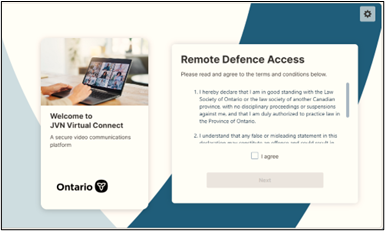
Click the meeting link in the email you received when your appointment was confirmed (or copy and paste the link into your browser).
- Review the Terms and Conditions, then click I Agree and Next.
- Enter your name, then click Next.
- Check your camera and microphone, then click Join Now.
- You will enter the meeting. The call will begin once your in-custody client joins.
During the call
Sharing documents
To share documents or evidence:
- Open the document you want to share.
Click Share Screen icon from the Participants Menu on the left.
- Select Window.
- Click the application window you want to share.
- If sharing a video with sound, turn on Also share system audio.
- Click Share.

Note: Screen sharing is not available on mobile devices.
See your client while sharing screen
To see your client while sharing your screen:
- Return to the meeting window.
- Hover over the shared content panel.
Select Picture-in-Picture.
- When you return to your shared screen, your client’s video will appear in a small overlay window.
Mobile device tips
- Rotate your device to landscape mode for best results.
- If the Join button is greyed out, change the selected camera or microphone.
- Screen and document sharing are not available on mobile devices.
- Do not use back (return) buttons on mobile device – it will disconnect the call.
Troubleshooting tips for Remote Defence Access
Before you join
You can test your video connection before your meeting using the pre-join link.
When accessing your meeting, enter the link directly into your browser’s address bar (not the search field), as entering it incorrectly may display search results instead of the login page.
Help with system and error messages
Use these tips if you encounter the following system or error messages while joining your video call.
“Cannot connect” or “Choose another meeting”:
Make sure you copied the full meeting link correctly. If the issue continues, contact the facility.
“Waiting for the host…”:
The facility has not joined the meeting yet – please allow a few minutes for them to connect.
“The meeting has reached the maximum number of participants”:
You may be joining too early, or a previous session may still be running. Close your browser and try again in a few minutes.
“The system you are trying to reach is temporarily unavailable. Please try again shortly.”:
This may be caused by network restrictions. If you are using a virtual private network VPN, disconnect from VPN and then try again.
Fixing connection issues
Use these tips if you encounter the following connection issues while joining your video call.
The system asks for a password:
Use the direct meeting link provided by the facility. Do not enter a password unless instructed.
You see a blank or white screen:
Open the link in a supported browser, such as Google Chrome.
You see a “spinning wheel” instead of the meeting video after connecting:
This may be caused by firewall restrictions. You can either:
- contact your IT support to open required ports
- try connecting using a different network.
Email jvninfo@ontario.ca for firewall requirements.
Fixing audio and video issues
Use these tips to fix audio or video issues while joining your video call.
Poor video quality, or disconnections:
This is usually caused by a weak or unstable internet connection. To improve performance:
- use a wired internet connection
- lower the meeting quality setting
- make sure your internet speed is at least 1 Mbps (upload and download)
Not able to select camera, microphone or speakers:
When you join the meeting:
- allow your browser to access your camera and microphone
- make sure your devices are connected
- close other apps that may be using your camera or microphone
- check that your camera and microphone are turned on
You cannot hear others, or they cannot hear you:
Check that the correct microphone and speaker are selected; if you connect a headset after joining, make sure it is recognized.
Audio and video are out of synch:
This may happen on lower-performance devices or when using background effect. You can:
- close unused applications
- turn off the background effects
- restart your browser
- clear your browser cache
Get help
For device issues, contact your information technology support team.
For Justice Video Network virtual connect issues, email jvninfo@ontario.ca.