

Create and submit a request
Prescribers, delegates and designates can create requests through SADIE which prescribers and delegates can then submit. This guide walks you through each step of the process.
Steps to create and submit a request
Step 1: Create a request
Click the Create Request button at the top of any SADIE page.
Step 2: Confirm prescribers details
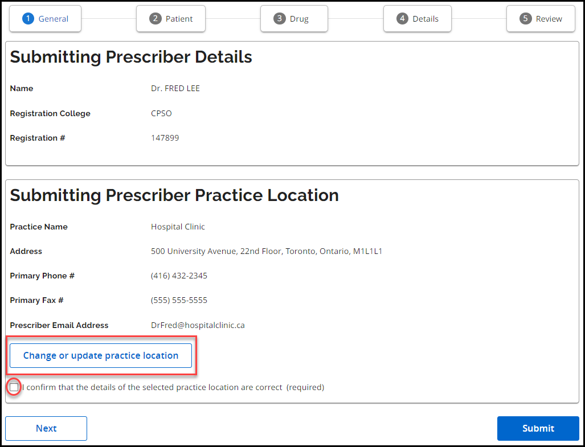
- On the General tab, confirm the prescriber’s location
- If needed, click Change or update practice location. For example:
- the prescriber works from more than one location
- to choose a different practice location
- if there is a change of information to record
- Check the box: “I confirm that the details of the selected practice location are correct.”
See the SADIE User Guide, Chapter 6, for information about confirming a prescriber’s details.
Step 3: Enter patient information
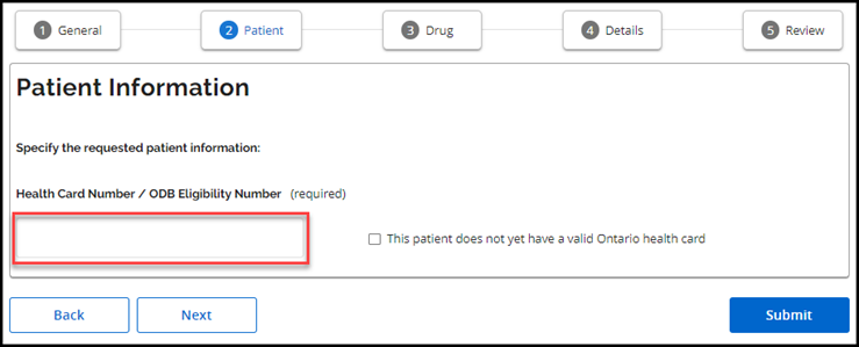
- Go to the Patient tab
- Enter the patient’s Ontario health card number or Ontario Drug Benefit (ODB) eligibility number (no version code needed).
- The system queries the Ministry’s health card records and if the patient is found, the page refreshes and displays the patient’s details.
- If you are accessing SADIE from your electronic medical record (EMR) software, the patient’s information will be pre-populated based on EMR data.
- Confirm the patient’s details by checking the box: “I confirm that the details for this patient are correct.”
See the User Guide, Chapter 7, for information about creating a request when the patient’s number is not found, as well as when adding a patient without an Ontario health card number or ODB eligibility number.
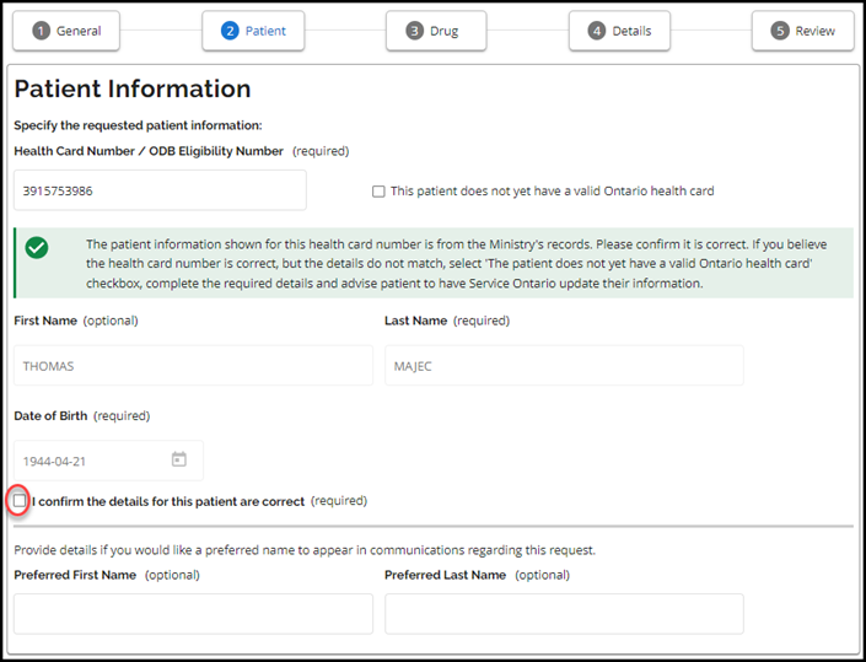
You can enter a Preferred Last Name or Preferred First Name if you know your patient by a different name.
This name will appear on the response letter to help you identify the patient.
Step 4: Enter drug and indication
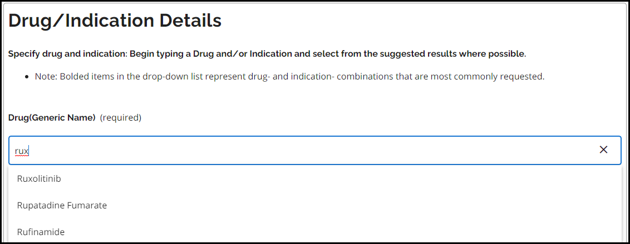
- On the Drug/Indication tab click into the Drug field and search for a drug by brand name, generic name or Drug Identification Number (DIN).
- If you enter a brand name or a DIN, the generic (chemical) name of the drug appears and must be selected by clicking on the drug name.
- If the drug isn’t listed, you can still submit an EAP request through SADIE.
- Click on the Indication field and click on a bolded value (if applicable). If necessary, type-in the indication.
- Bolded options often trigger a smart form with criteria-specific questions.
- If a non-bolded indication is selected, or an indication is typed-in, a generic SADIE form will display.
Whenever possible select from an indication in the drop-down menu.
The Hospital Discharge section is available for patients awaiting discharge.
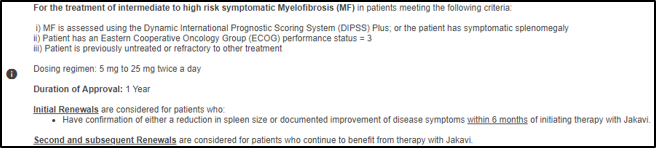
Once you have selected a drug and indication, Reimbursement criteria for that combination will be displayed, if available.

See Chapter 8 of the SADIE User Guide for information about entering Drug / Indication details and entering hospital discharge details.
Step 5: Provide clinical details in the details tab
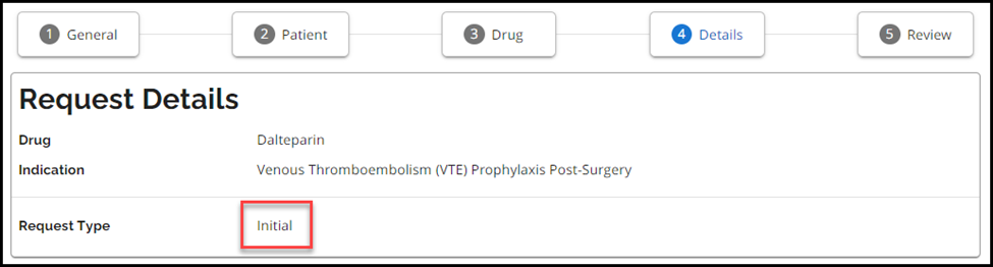
- SADIE automatically determines the request type (Initial, Renewal or Amendment).
- Answer all relevant clinical questions. These may change dynamically based on your responses.
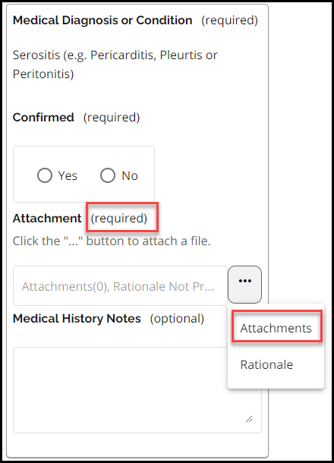
- Attach supporting documents
If the attachment is too big you can fax it to
1-888-444-0116 if needed
- Mandatory fields are marked with an asterisk (*). If you do not answer a mandatory question, you will need to provide a rationale for why you cannot provide this information.
- Providing answers to all mandatory questions will ensure your request is dealt with promptly.
See Chapter 9 of the SADIE User Guide for information about entering Clinical details.
Step 6: Review and submit
- On the Review tab, ensure all mandatory fields are completed and the information provided is accurate.
Unanswered required questions will be flagged with the message “Value is Required”.
- Click on the “Value is Required” message, to be directed to the question that was not answered.
- Once answered, return to the Review screen and ensure no other required information is missing.
- Prescriber and delegates can submit the request to the EAP.
- If all required information is not submitted, SADIE will prompt the user to include rationale for not including this information.
- Designates must send the request to the prescriber for final submission.
- The Terms and Conditions window displays. If in agreement, click “Accept”.

See Chapter 11 of the SADIE User Guide for information about sending a request to a prescriber to review and submit.
Step 7: Submission outcomes
Automatic assessment
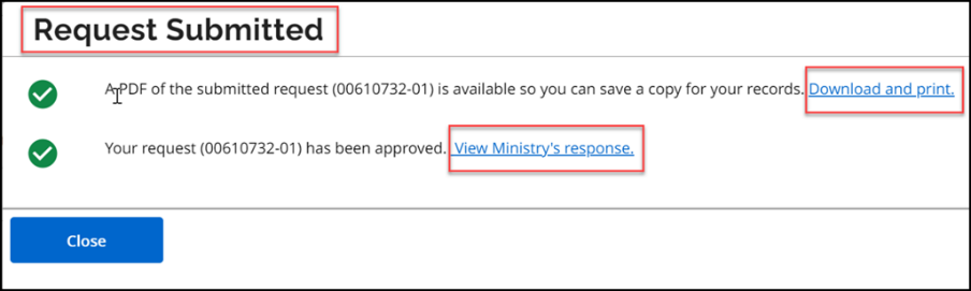
If approved instantly, you’ll see “Your request (########-01) has been approved.”
- Click “View Ministry’s response” to access the Notice of Approval.
- The system displays the ‘Submission Details’ and related ‘Correspondence Exchanged with the Ministry.’
- The approval will also be sent to the prescriber’s office by fax and into the EMR system (community-based EMR systems only, ask your EMR vendor for details).
Manual assessment
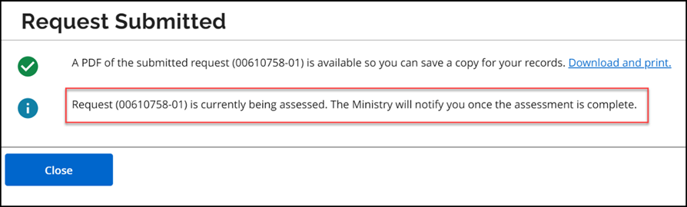
If a manual review is needed, you’ll see: “Request (########-01) is currently being assessed. The Ministry will notify you once the assessment is complete.”
- You will be notified by email once a decision is made. The EAP response letter will also be sent to the prescriber’s office by fax and into the EMR system (community-based EMR systems only, ask your EMR vendor for details).
For more information, visit the SADIE Training Aids page or consult the SADIE User Guide.
Contact us
General inquiries:
Technical support:
SSContactCentre.MOH@ontario.ca
Monday – Friday 8 a.m.– 5 p.m.