

Set up a delegate or designate in SADIE
A delegate or designate profile can be created by a prescriber (a physician or a nurse practitioner) or an existing delegate, to prepare EAP requests on the prescriber’s behalf. Setting up a new delegate or designate is a two-step process. Both steps must be taken before the new user can access SADIE.
Delegates and designates are individual users. Each delegate or designate must have their own individual profile to access SADIE.
Full training instructions to set up a delegate or designate are found in Chapters 12 and 13 of the SADIE User Guide.
Steps to set up a delegate or designate
Step 1: OPS BPS Secure setup
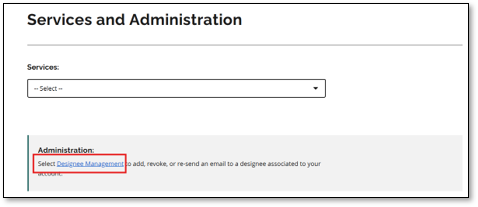
The prescriber must add the new user as a ‘designee’ in their OPS BPS Secure account.
- If assisting more than one prescriber, each prescriber must add the new user individually in OPS BPS Secure.
Step 2: SADIE setup
- A prescriber or an existing SADIE delegate must add the new user as a delegate or designate in SADIE.
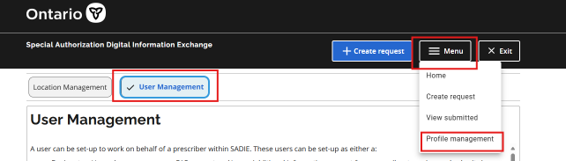
Click Menu from the top of any SADIE page, select Profile Management, then click the User Management button.
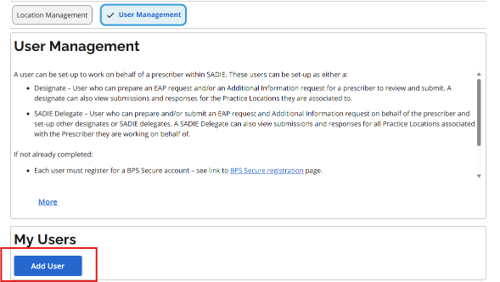
The User Management screen displays. Click the Add User button.
Note: Prescribers launching SADIE from their electronic medical record (EMR) software must have their own OPS BPS Secure account before setting up a delegate or designate in SADIE. If the prescriber doesn’t have an OPS BPS Secure account, the Add User button will be non-functional.
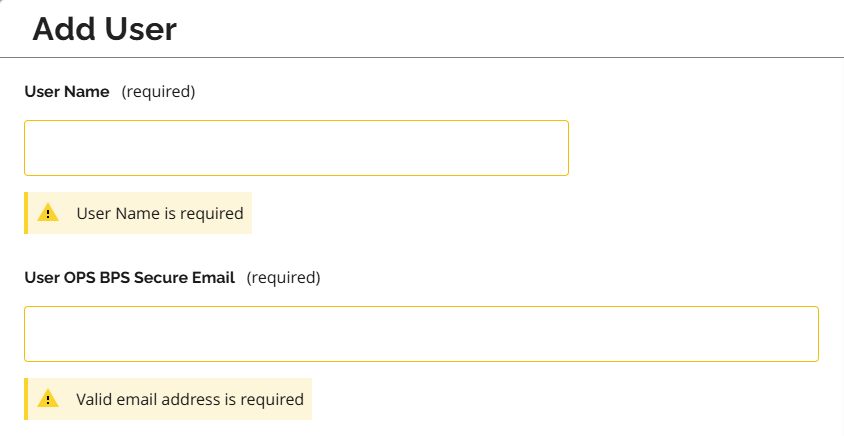
The Add User screen displays at which point the prescriber or delegate can add the new user to SADIE.
Once a new delegate or designate has been added to SADIE, please communicate this to them.
Scenarios and instructions
I do not have an OPS BPS Secure account but would like to be a delegate or designate
Prescriber actions:
- A prescriber must add you as an OPS BPS Secure designee under their OPS BPS Secure account for you to complete your OPS BPS Secure designation.
- See Step 1 (above) or Chapter 12 of the SADIE User Guide.
- Then the prescriber or an existing SADIE delegate must add you as a delegate or designate in SADIE.
- See Step 2 (above) or Chapter 13 of the SADIE User Guide.
Your (Designee) actions:
After your prescriber adds you as their OPS BPS Secure designee, you will receive three emails from OPS BPS Secure as you complete your account registration.
- Follow the link in the email with the subject line “Access created/Accès créé” to register for your OPS BPS Secure account.
- Next, follow the link in the email with the subject line “Please Confirm Designated Access/S’il vous plaît confirmer l’accès désigné" to validate your email in OPS BPS Secure and follow the prompts to complete your OPS BPS Secure designation.
- The email with the subject line “Designation Confirmation” confirms that you have been successfully registered as an OPS BPS Secure designee.
- See Chapter 12 of the SADIE User Guide for delegate and designate confirmation instructions.
- Let the prescriber or an existing SADIE delegate know that you have completed OPS BPS Secure Registration and ask them to add you to SADIE, if they have not yet done so.
- See Step 2 (above) or Chapter 13 of the SADIE User Guide.
- After you are added as a delegate or designate, you can log in to SADIE.
- See Chapter 1 of the SADIE User Guide.
I am a SADIE delegate or designate for one prescriber but need to be added as an OPS BPS Secure designee by another prescriber.
Prescriber actions:
- The other prescriber must add you as an OPS BPS Secure designee under their OPS BPS Secure Account.
- See Step 1 (above) or Chapter 12 of the SADIE User Guide.
- Then, the prescriber or an existing delegate must add you as a delegate or designate in SADIE.
- See Step 2 (above) or Chapter 13 of the SADIE User Guide.
Your (Designee) actions:
- You will receive an email from OPS BPS Secure with the subject line “Please Confirm Designated Access/S’il vous plaît confirmer l’accès désigné.”
- Follow the link in this email to confirm your designation.
- See Chapter 12 of the SADIE User Guide for delegate and designate confirmation instructions.
- Let the prescriber or an existing SADIE delegate know you have confirmed designated access in OPS BPS Secure and ask them to add you to SADIE, if they have not yet done so.
- After you are added as a delegate or designate in SADIE, you can log in to SADIE.
- See Chapter 1 of the SADIE User Guide.
I am an OPS BPS Secure Designee but have not yet been added to SADIE
- The prescriber or their existing SADIE delegate must add you as a delegate or designate in SADIE.
- See Step 2 (above) or Chapter 13 of the SADIE User Guide.
- After you are added as a delegate or designate in SADIE, you can log into SADIE.
- See Chapter 1 of the SADIE User Guide for login instructions.
Contact us
General inquiries:
Technical support:
SSContactCentre.MOH@ontario.ca
Monday – Friday 8 a.m. – 5 p.m.