

Manage locations in SADIE
A location (or practice location) in SADIE is typically a physical address where a prescriber provides services to patients (i.e., a prescriber’s office, clinic, hospital).
All Exceptional Access Program (EAP) requests are associated with a location, which determines where the response to a request is sent and allows prescribers to determine which requests designates can access.
Designates, including Patient Support Programs (PSP) employees and Drug Access Navigators (DANs), can be assigned to specific location(s) and only have access to saved requests, submitted requests, and assessment results for their assigned location(s). This ensures that patients’ personal health information is protected and allows prescribers to properly limit designates to the specific patient population they serve.
Delegates have access to all personal health information for all EAP requests for any location associated with the prescriber.
Quick facts:
- All users can edit existing location details (name, address, telephone, fax, email) for locations they have access to.
- Prescribers and delegates can add and delete practice locations.
- Prescribers can have as many locations in SADIE as are required to reflect where they see patients and who assists with EAP requests.
Best practices:
- Create unique locations for each PSP or DAN assisting with EAP requests.
- Avoid creating locations for individual staff within a PSP.
- Maintain accurate and up-to-date location information. Prescribers and their authorized users are responsible for keeping location information accurate and current.
Important notes:
- Location updates in SADIE apply only to programs using SADIE (e.g., EAP, ODSP).
- Changes in SADIE do not affect other OPS BPS Secure services like MCEDT billing.
- Changes to location details affect all current and future SADIE requests associated with that location.
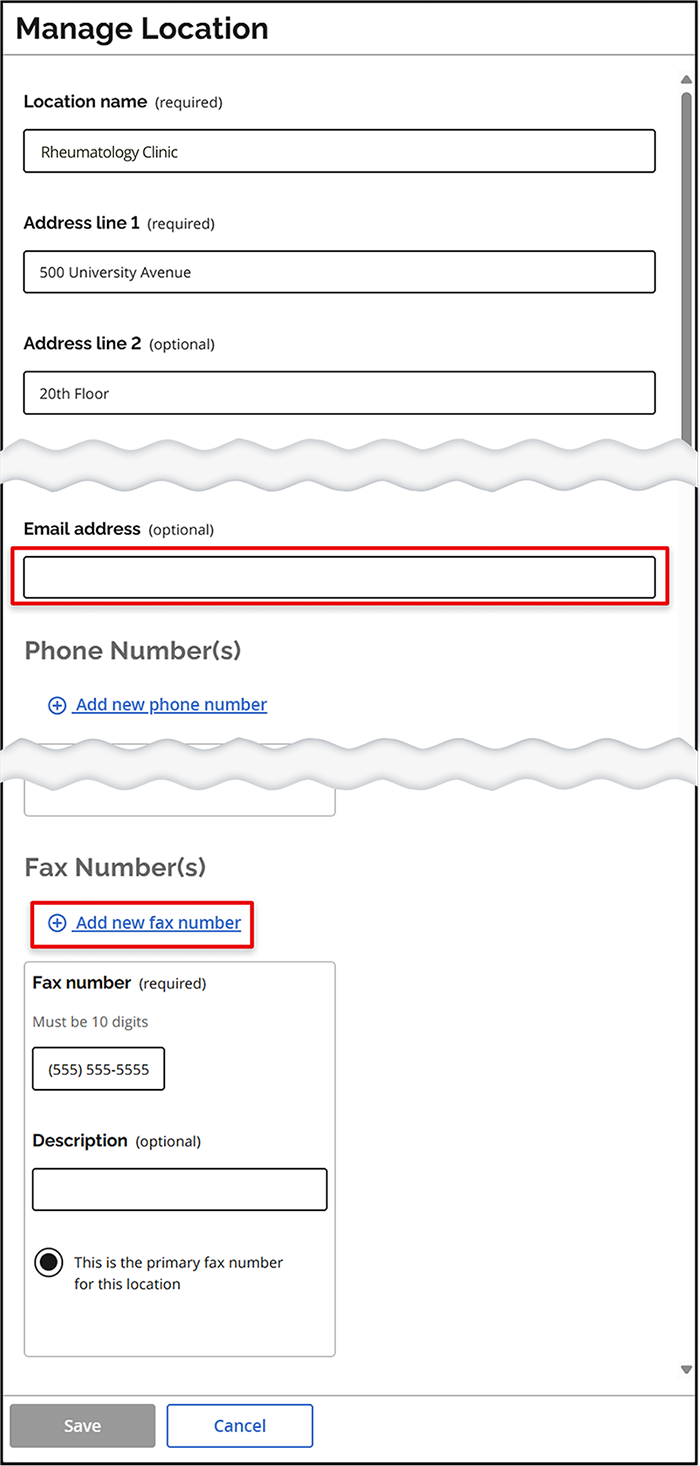
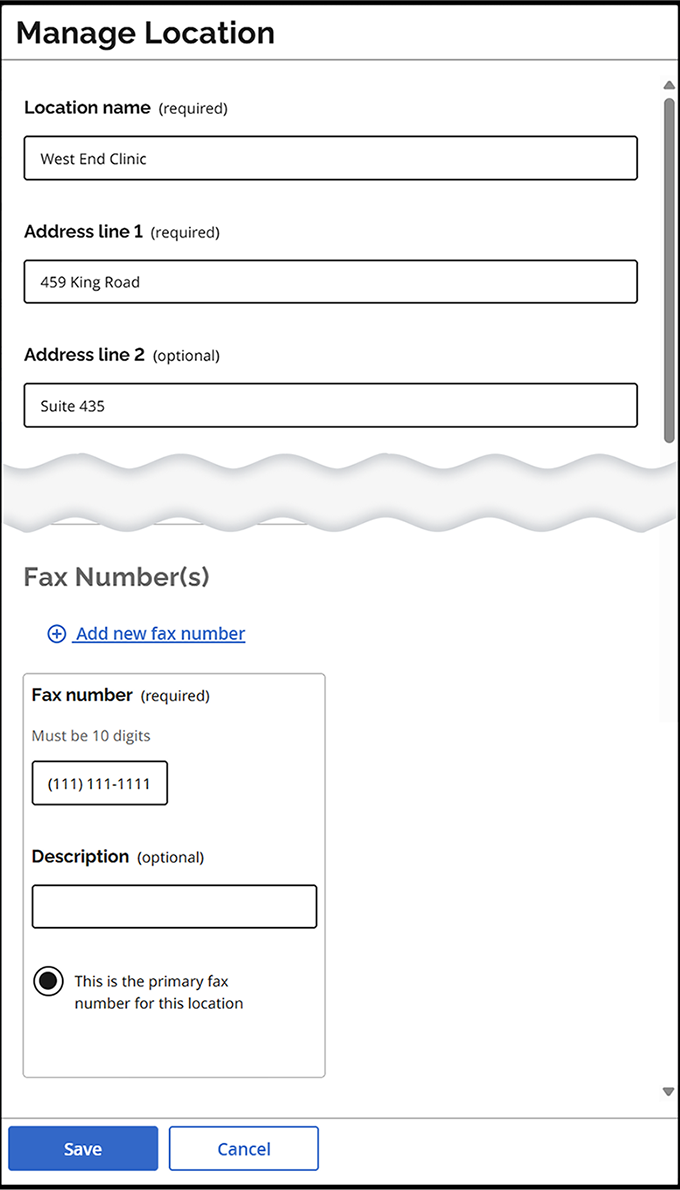
- At least one fax number is required per location, but multiple fax numbers can be added.
- The optional email field in the “Manage Location” window can be set to a general email inbox for a drug access team (e.g., drugaccess@abcpharmacy.com) which will allow EAP response letter notifications for that practice location to be monitored by a team.
- Note: each individual delegate and designate must only access SADIE with their own unique credentials.
- Prescribers will be prompted to create a location in SADIE before submitting a request if launching from an electronic medical record (EMR) system from a new location.
Location management
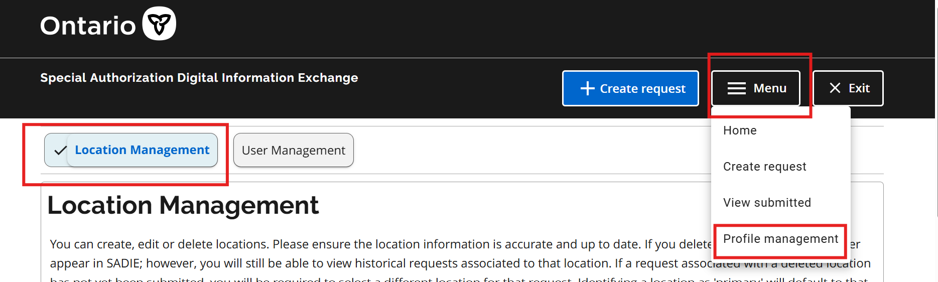
To manage practice locations, click Menu from the top of any SADIE page, select Profile Management, then click the Location Management button.
In the Location management screen:
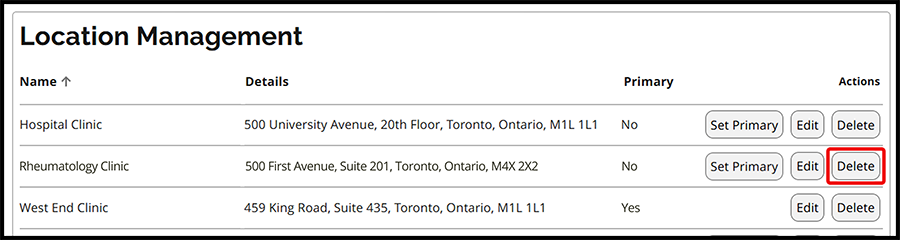
- Prescribers and delegates will see options to Add new location, Set Primary, Edit, and Delete.
Designates only have access to the Edit function.
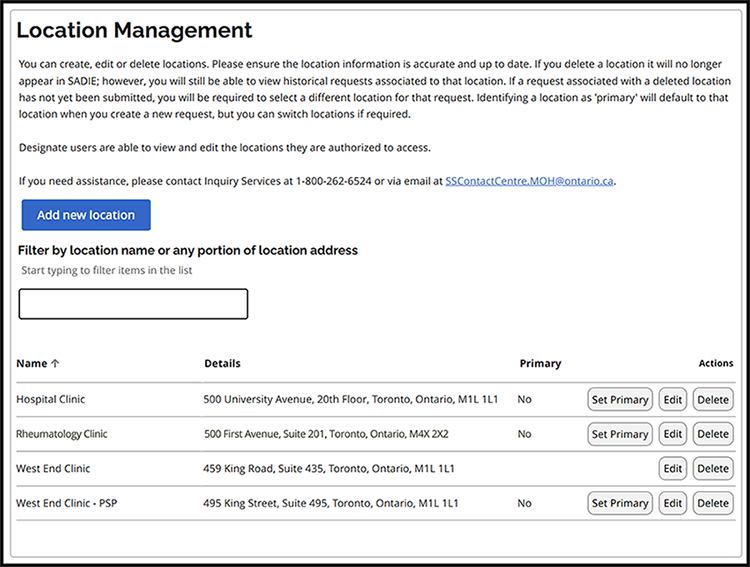
Key actions:
- Set primary location: this becomes the default for new requests originating from the SADIE portal but can be changed at any time.
Add/Edit location: clicking the “Add new location” button or the “Edit” button opens the “Manage Location” window to enter or update location details.
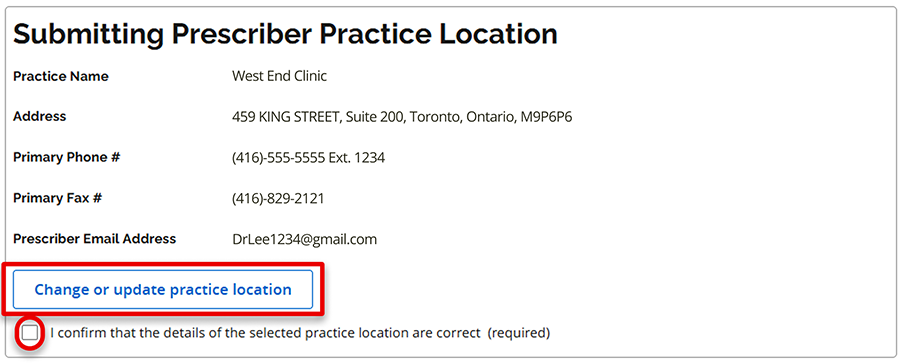
To change or update a practice location while creating a request
Prescribers and delegates can add a new location and all users with access to a location can edit the existing details (including address, telephone number, or fax number) while in the process of creating an EAP request or submitting additional information.
In the 1. General Tab click Change or update practice location.
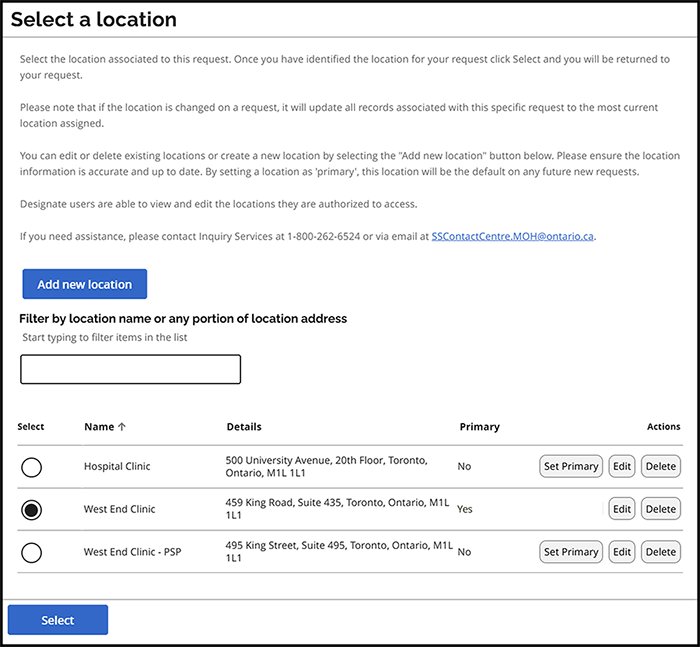
- In the Select a location window which displays:
- Choose an existing location.
- Prescribers/delegates can click Add new location.
All users can click Edit to update details.
- In the Manage Location window:
- Enter or update the location details.
Click Save.
Note: If SADIE is launched from an EMR system from a “new” location not associated with a previous SADIE request, the Manage Location window will open and auto-populate with EMR location data. A location must be created in SADIE before submitting an EAP request.
To delete a location
If a location that appears on the Location Management screen needs to be removed, prescribers or delegates can delete it by clicking Delete.
Confirm by selecting the Yes button in the Delete location pop-up window.
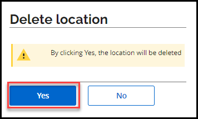
The location is removed from the Location Management screen.
- Designates linked ONLY with the deleted location will be unable to access SADIE.
- If a request associated with a deleted location has not yet been submitted, a different location must be chosen to submit that request.
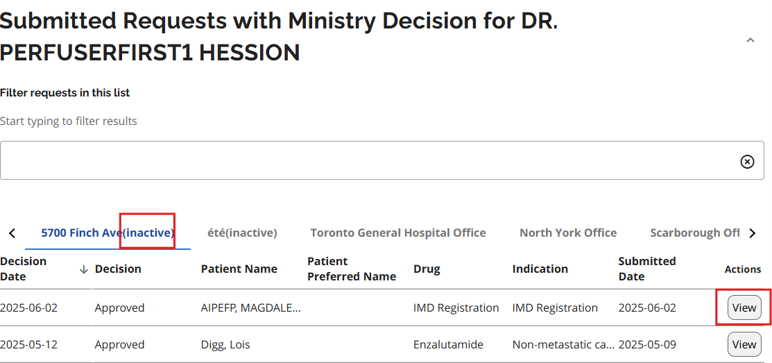
Locations that are deleted are still viewable in SADIE. They display with ‘Inactive’ in parentheses after the location address. EAP decisions associated with a deleted location are still accessible to prescribers, delegates and designates for tracking purposes.
See Chapter 17 of the SADIE User Guide for more information.
Contact us
General inquiries:
Technical support:
SSContactCentre.MOH@ontario.ca
Monday – Friday 8 a.m.– 5 p.m.