

Register for an OPS BPS Secure account
Before proceeding
- Prescribers - have your Unique Identifiers for Registration on hand.
- Delegates and designates - please refer to Set-up a Delegate or Designate in SADIE.
Steps for all users
Step 1:
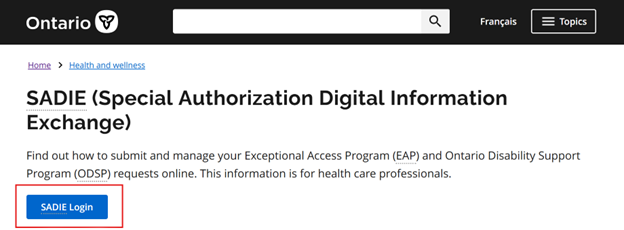
Visit ontario.ca/SADIE, and click the SADIE Login button.
Step 2:
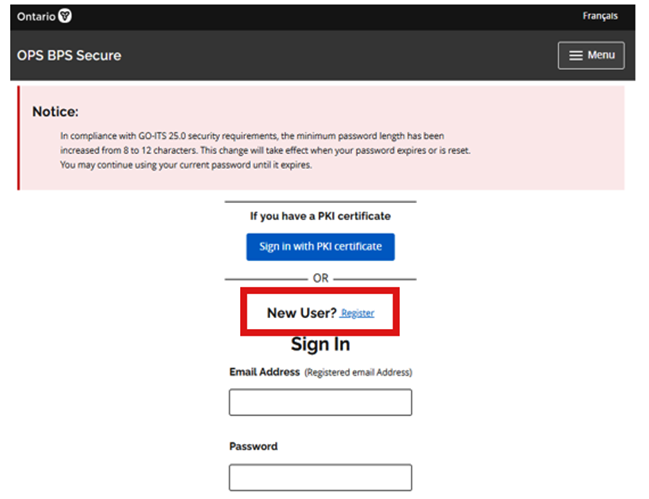
Set up an OPS BPS
Secure account by selecting the New User? Register link.
Step 3:
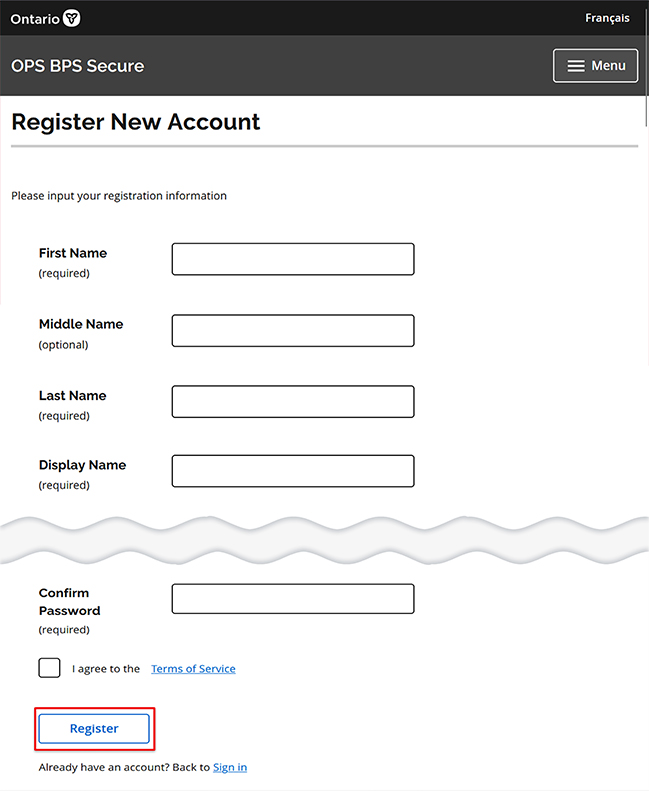
Follow the prompts to Register New Account and click Register.
Step 4:
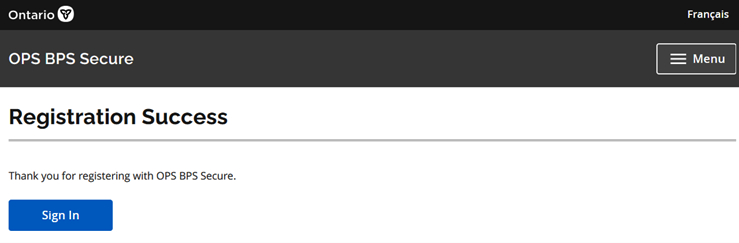
The Registration Success page displays.
- You will receive two emails from OPS BPS Secure, one of which contains a verification code you must enter when you log into SADIE for the first time.
Step 5:
Login to SADIE. Either:
- Click the Sign In button from the Registration Success page, or
- Go to ontario.ca/SADIE and click the SADIE Login button
Step 6:
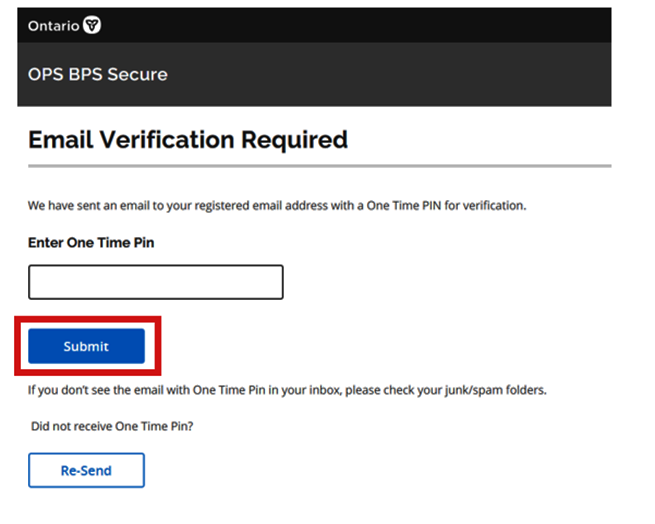
Enter your verification code received in the email and click Submit
Step 7:
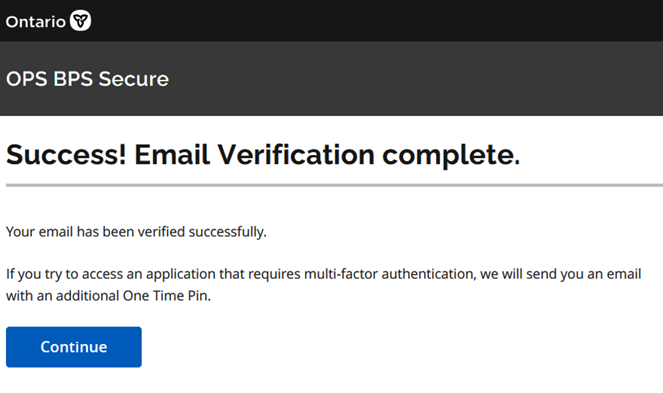
Click Continue on the success page
Prescribers – continue to Step 8.
Delegates and designates, continue to Step 15.
Prescriber next steps
Step 8:
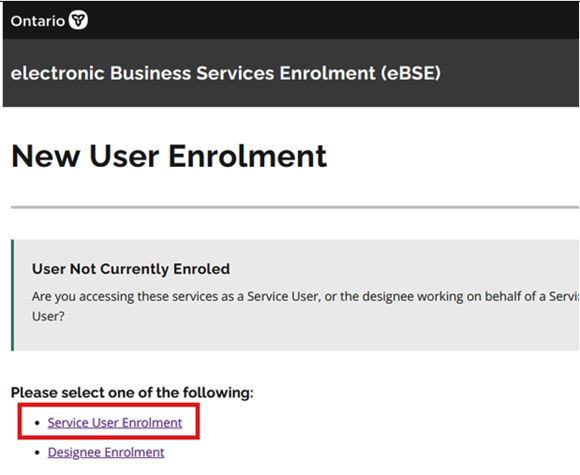
Prescribers click the Service User Enrolment link.
Step 9:
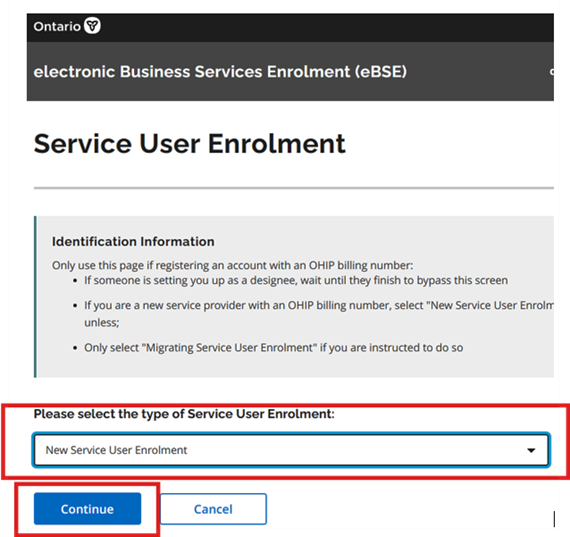
Select New Service User Enrolment from the enrolment type drop-down list and click Continue.
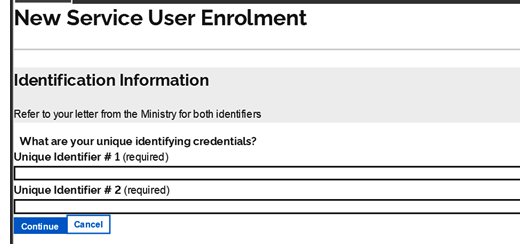
Step 10:
Insert your unique identifiers, where prompted and click Continue.
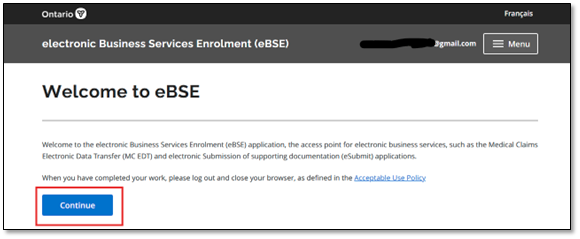
Step 11:
The Welcome to eBSE screen displays, click Continue.
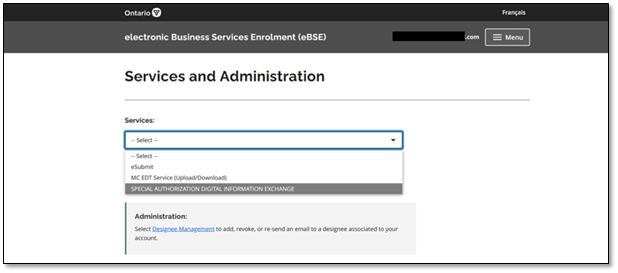
Step 12:
The Services and Administration screen displays. From the drop-down Services menu, select Special Authorization Digital Information Exchange
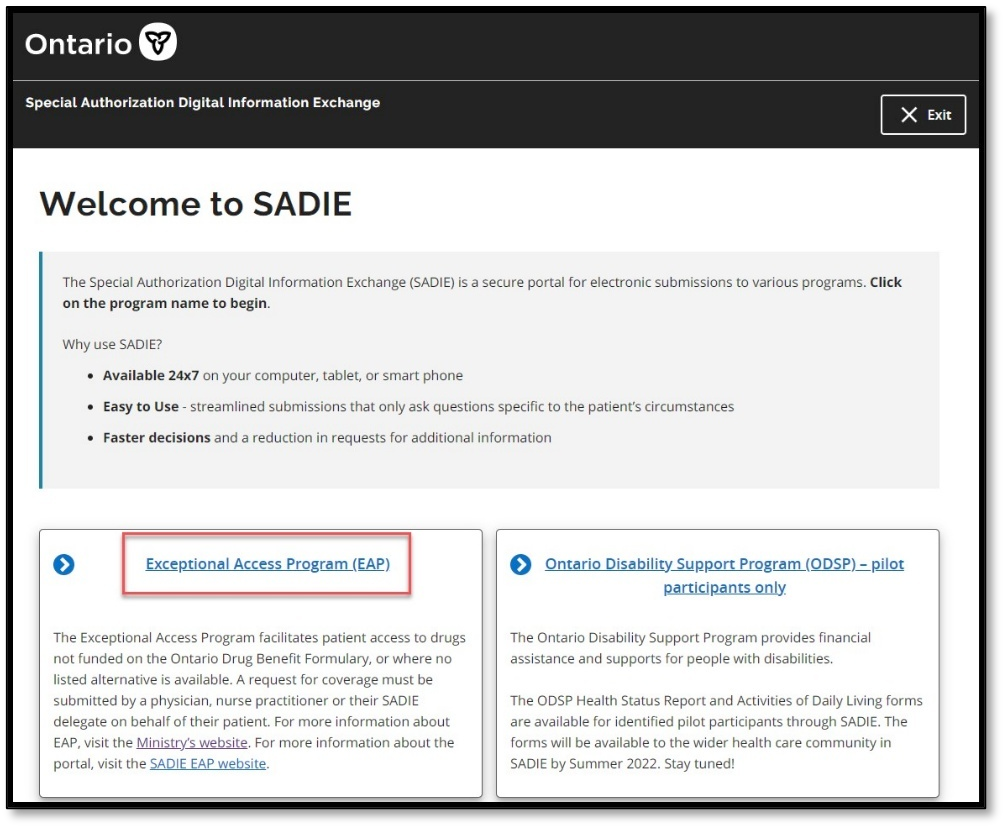
Step 13:
From the Program Selection screen, select Exceptional Access Program (EAP), then review the SADIE Acceptable Use Policy. If you agree, click the Accept button.
Step 14:
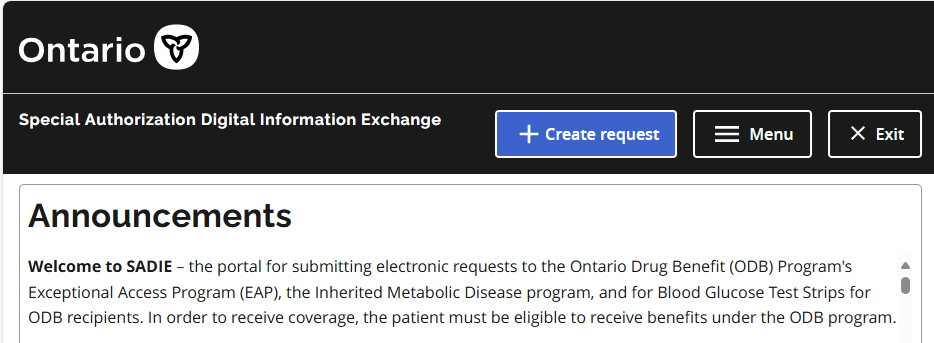
The SADIE Home Page displays. Begin creating EAP requests. For instructions on how to use SADIE, refer to the SADIE Training Aids webpage.
Delegate and designate next steps
Step 15:
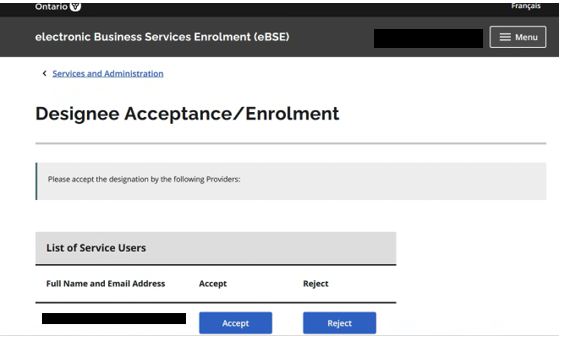
Delegates and designates will be presented with the Designee Acceptance/Enrolment screen. To confirm the designation from the prescriber you are representing for SADIE requests, select “Accept.”
Step 16:
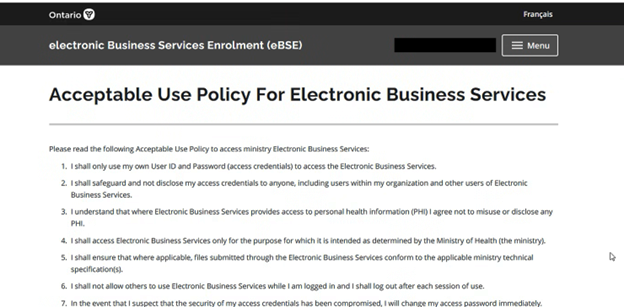
The Acceptable Use Policy for Electronic Business Services will display. Read the policy, if you are in agreement, select ‘Accept’ to complete your OPS BPS Secure designation.
Step 17:
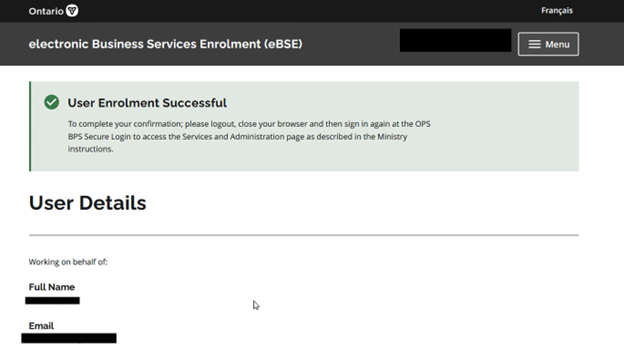
The ‘User Enrolment Successful’ message displays and another system generated email from OPS BPS Secure is automatically sent to the designee with the subject: “Designation Confirmation”. Log out from your OPS BPS Secure account. Let the prescriber know you have completed OPS BPS Secure registration and ask them to add you to SADIE.
Step 18:
Once you have confirmation from the prescriber or their existing delegate that you have been added to SADIE as a delegate or designate, please refer to the Access SADIE quick guide, specifically the section on “How to access SADIE via OPS BPS Secure”.
Contact us
General inquiries:
Technical support:
SSContactCentre.MOH@ontario.ca
Monday – Friday 8 a.m. – 5 p.m.