

Provide additional information requested by the EAP
If the Exceptional Access Program (EAP) requests more details for a submitted request, prescribers, their delegates, and designates can submit this information online through SADIE.
- Prescribers and delegates can submit additional information.
- Designates can prepare the information, but only for requests linked to locations they have access to.
For more details, see the SADIE User Guide, Chapter 16. Videos and other supports can be found at Ontario.ca/SADIE under “Training Aids”.
Steps to provide additional information
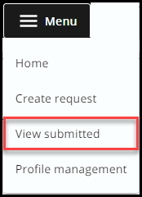
Step 1: Click the Menu button found in the header at the top of all SADIE pages and then click on View submitted.
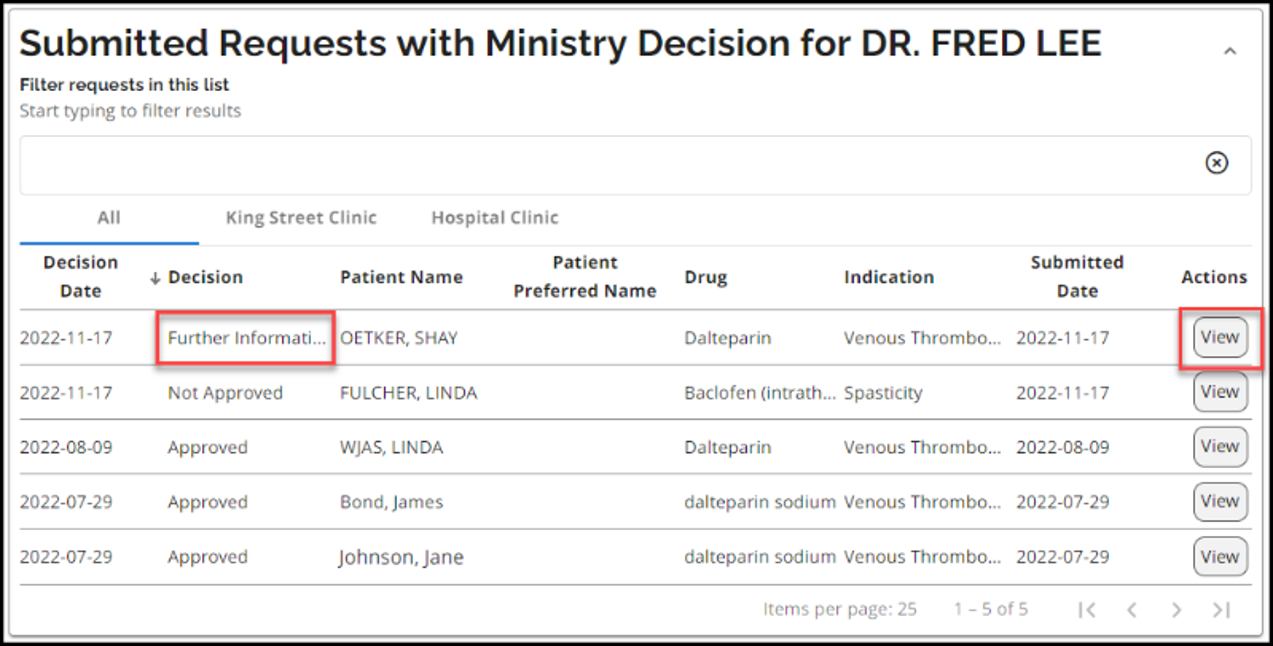
Step 2: Click the View button for the request with a “Further Information Required” decision in the Submitted Requests with Ministry Decision list.
Step 3: Click the Add Additional Information button in the Correspondence in Progress section.

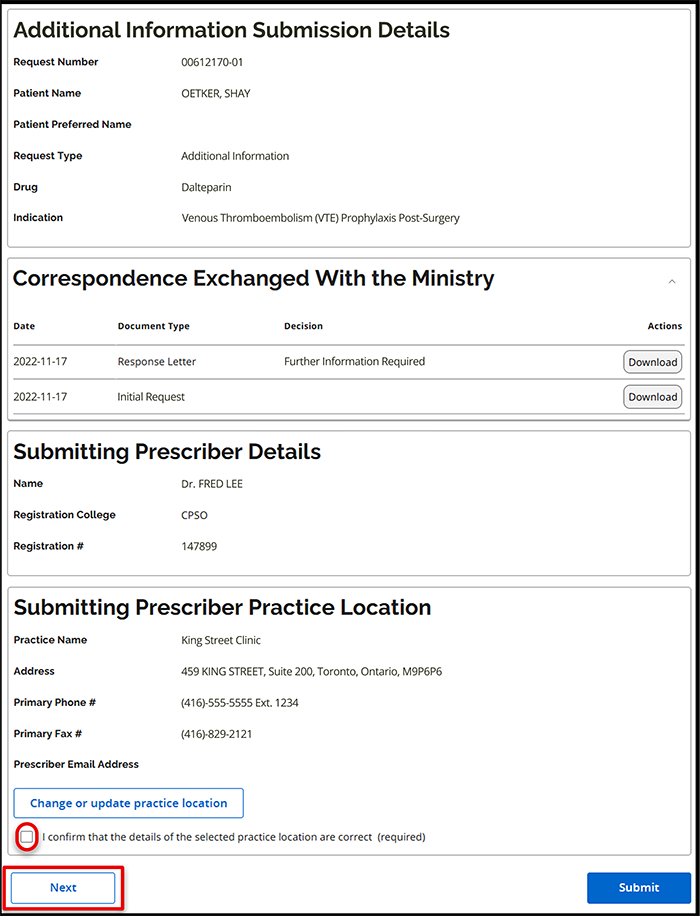
Step 4: The Additional Information Submission Details Summary window displays. Confirm practice location details and then click the Next button.
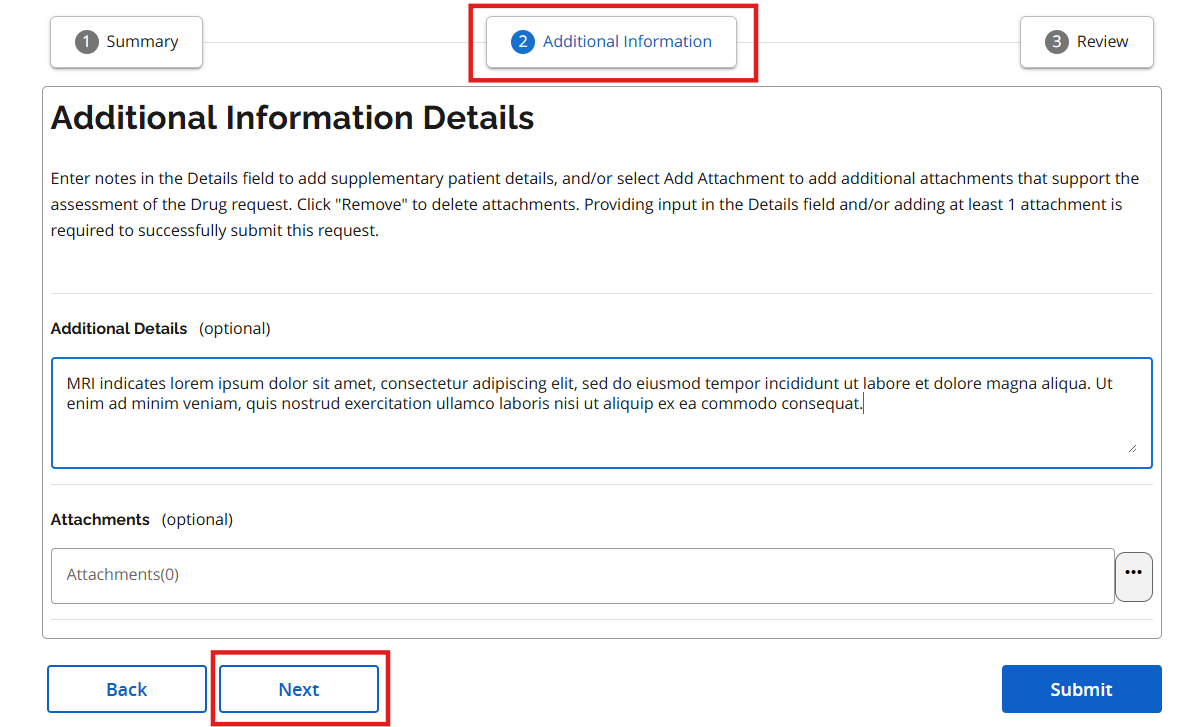
Step 5: The Additional Information tab displays. Type in additional information details or paste from another document and/or add attachment(s), then click the Next button.
Step 6: The Review Tab displays: review the information, and to continue click the Submit button. Prescribers and delegates can continue to Step 7.
Note that designates will see a Send to Prescriber button instead.
- When a designate clicks the Send to Prescriber button, the additional information displays on the SADIE home screen in the Requests Ready to Submit list for the prescriber or delegate to review and submit to EAP.
Step 7: The Submitting Terms and Conditions page displays: if in agreement, click the Accept button.
Step 8: The Request Submitted window appears. Download or view the request summary (optional) or close the window.
Once the window is closed, the Submission Details screen which is updated with the additional information.
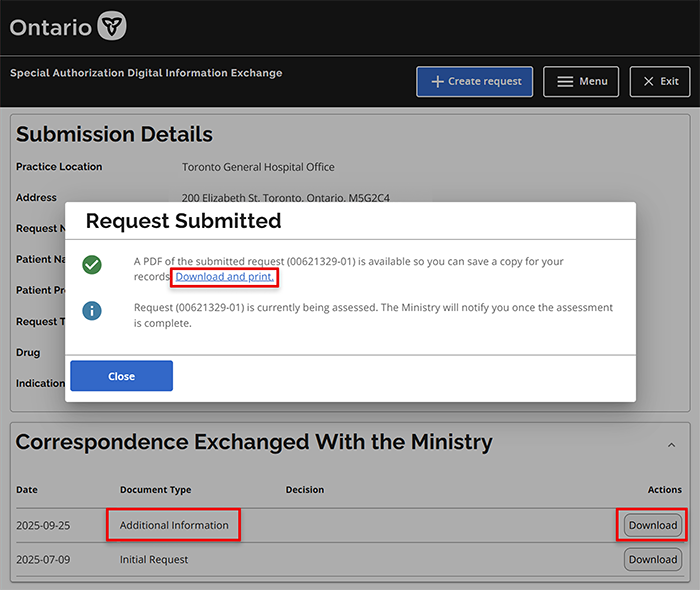
A copy of the submitted additional information is available to view/download at any time in SADIE from the Submitted Request Awaiting Ministry Decision list, by clicking the Menu button found in the header at the top of all SADIE pages and then clicking on View submitted.
Note: It can take a few minutes for the submitted request to appear in the list.
Contact us
General inquiries:
Technical support:
SSContactCentre.MOH@ontario.ca
Monday – Friday 8 a.m. – 5 p.m.